

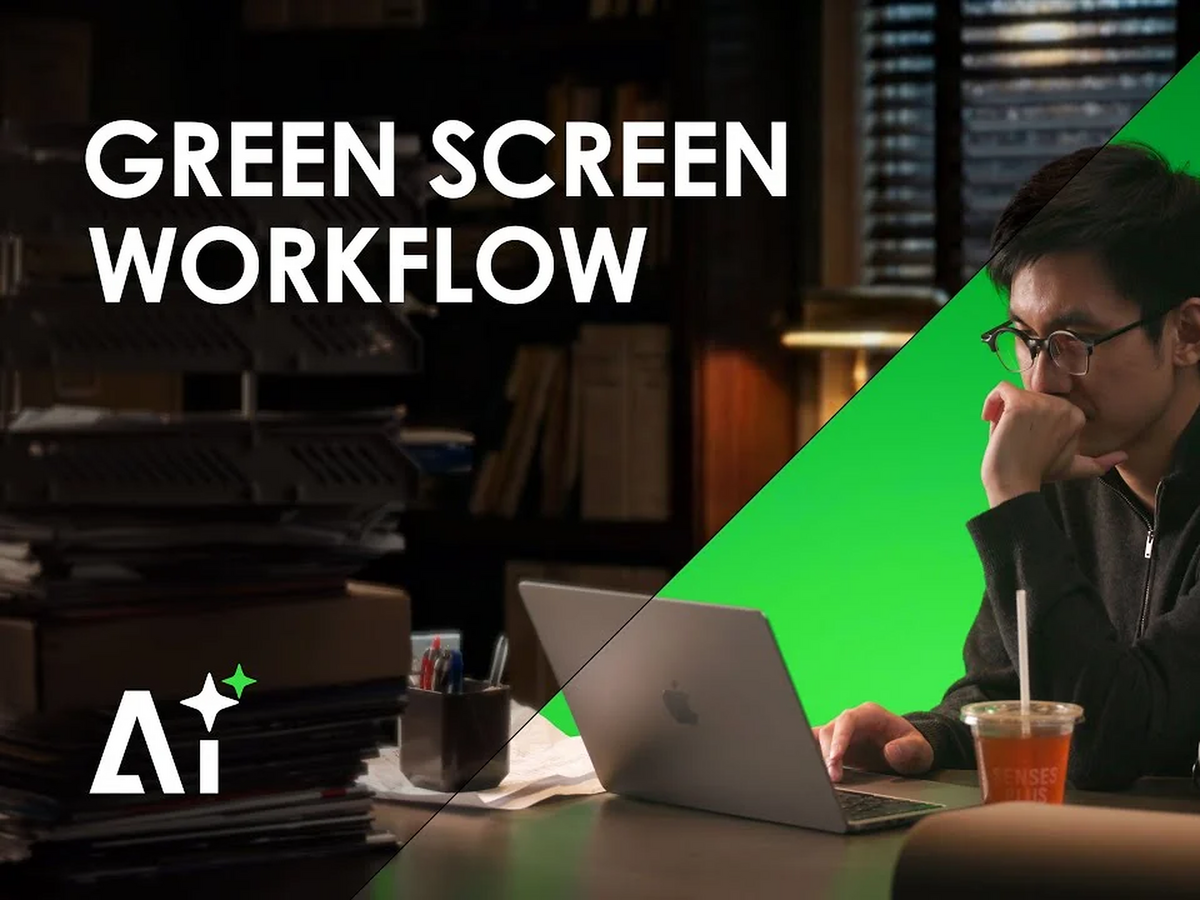
Use a collapsible green screen to record clean footage, remove the green area in editing, and add an AI background that fits your video. You can create different visual settings from one recording session without building a new physical set each time.
Why Traditional Background Setups Cost More Time and Space
Traditional sets need room for props, furniture, lights, wall panels, and backdrop materials. Every new video style can involve carrying gear, moving furniture, arranging the set, and checking the frame again.
A tutorial may need an office setting. A social clip may need a creative room or a location scene. Physical sets also need repeat adjustments when chairs move, lights shift, fabric develops folds, or daylight changes.
A collapsible green screen reduces the amount of scenery around your camera. You can keep one recording area ready for different video concepts. The low-cost advantage is practical rather than automatic: reuse one well-lit recording setup for several takes and background options, then save approved prompts and scenes to reduce repeat set building, reshoots, and unused AI generations.

How AI Solves Common Background Problems
AI replaces the green area behind you with a background chosen for your video. A collapsible green screen background gives editing software a clear color to separate from your hair, clothing, hands, and props.
Use an AI office for tutorials, a clean studio for product videos, or a simple interior for lifestyle content. Match the background to your camera angle and light direction. A front-facing shot works well with a front-facing room, while soft side light on your face works well with a background that has similar side light.
The green screen and AI compositing walkthrough shows the core process of green screen recording, AI background creation, and final compositing.

Use a Collapsible Green Screen for AI Backgrounds in Three Steps
Use a collapsible green screen through three practical steps: light the screen, create the background, and refine the composite.
Step 1: Light the Subject and Green Screen Evenly
Light your subject and green screen evenly so the green area stays easy to remove. Stand forward from the screen and use soft light across the green surface.
Aim screen lights from both sides when room allows. Keep dark patches, bright hotspots, deep folds, and subject shadows away from the green area. Use a main light for your face and body, then check the camera display around your shoulders and hair.
Record a short test clip with hand movements, head turns, and any product you plan to show.

Step 2: Generate an AI Background That Matches Your Shot
Generate an AI background that matches your camera angle, light direction, framing, and video purpose. Keep the prompt focused on room type, color palette, style, and open space around your subject.
Use a background with open center space for talking head videos. Use a clean surface with room around the product for demonstrations. Choose a scene with visible floor space for standing content.
Check each background before compositing:
- Match a front-facing camera angle with a front-facing room.
- Match soft side light with similar light in the AI scene.
- Use simple scenery for active hand gestures.
- Use wider rooms for full body framing.
- Keep busy details away from your outline.
Save a few visual versions of the same setting so you have options during editing.
Step 3: Composite the Subject and Background Naturally
Remove the green color, place the AI scene behind your footage, and clean up the edges around your subject. Check hair, hands, glasses, clothing, and product outlines before export.
Match brightness and color temperature across both layers. Adjust the AI background first when it looks warmer or cooler than your footage, so skin tones stay natural.
For standing videos, add a soft contact shadow near the feet when the new scene has a visible floor. Use slight background blur when your camera footage has a softer focus look. Review the final video at full size and on a phone screen, since fine edges can look different across displays.
What Makes a Collapsible Green Screen Better for AI Videos
A collapsible green screen gives you a stable chroma key surface that opens quickly and stores in a compact form after filming. Look for features that support regular AI background work:
- A smooth green surface for cleaner keying.
- A stable structure that keeps the screen flat.
- Quick opening and closing for one-person setup.
- Compact storage for smaller rooms.
- Enough height and width for your usual framing.
- A durable case or housing for regular storage.
For a seated creator setup or a compact recording corner, the 5’ x 6.9’ Collapsible Green Screen provides standard coverage of 59.8 x 82.7 inches. For standing videos, wider hand movement, or broader horizontal framing, the 6.6’ x 6.9’ Collapsible Green Screen provides wider coverage of 78.7 x 82.7 inches.
For full-body scenes, larger movements, or AI compositions that show the floor around the subject, use the Collapsible Green Screen - FloorFlex™. Its floor screen provides additional coverage below the subject when the final background includes a visible floor plane.

Make Every AI Background Shoot Faster With a Collapsible Green Screen
Before your next shoot, keep the screen position, camera mark, lighting placement, and successful prompt notes from the last one. That gives you a repeatable starting point while leaving the video-specific choices, such as room type, product surface, and color palette, to the new script. You can then spend editing time on clean keying and a lighting-matched composite instead of rebuilding a physical set.
FAQs
Q1: Do I Really Need a Physical Green Screen if AI Can Remove Backgrounds Automatically?
Not always. AI background-removal tools can work well for simple shots, but results may become less consistent around hair, fingers, moving props, and areas where the foreground and background have similar colors. A smooth, evenly lit collapsible green screen provides a clear chroma-key color, helping editing software produce cleaner and more predictable subject separation, especially for longer videos, repeated takes, and scenes with frequent movement.
Q2: Does This AI Workflow Work With Dynamic Video Backgrounds or Only Static Images?
It can work with both. After recording and keying the subject, you can place the footage over a static AI-generated image or an animated AI video background. A clean green screen makes subject isolation easier, but the final composite may still need adjustments to perspective, brightness, color temperature, background blur, and contact shadows to look natural.
Q3: How Do I Match Real-World Lighting With an AI-Generated Background?
Set the physical lighting on your subject first, then generate or select an AI background with a similar light direction, brightness, and color temperature. For example, if the subject is illuminated from the left, the AI scene should also appear to have its main light source on the left.
The AI background does not automatically change the lighting already recorded on the subject. Matching the real lighting during filming usually produces a more convincing composite than trying to relight the subject entirely in post-production.
Q4: Can AI Generate Consistent Backgrounds for Multi-Angle Green Screen Shoots?
Yes, but maintaining visual consistency across multiple angles can be challenging. Keeping the green screen, subject marks, camera height, and lighting positions consistent helps preserve the quality of the recorded footage, but it does not guarantee that AI will recreate the same environment accurately from every angle.
For better continuity, reuse the same reference image, prompt details, scene layout, and color palette. For more complex multi-angle productions, a reference-controlled AI workflow or a 3D virtual environment may be more reliable than generating each camera angle independently.
Q5: What Green Screen Size Do I Need for an AI Video Setup, and Which Editing Software Can I Use?
Choose the green screen size according to your framing and movement. The 6.6’ x 6.9’ Collapsible Green Screen provides wide coverage for seated, desk-based, and waist-up videos, with additional room for hand gestures and horizontal framing.
For standing, full-body, or larger movements, the 7 x 7 x 7 ft Collapsible Green Screen - FloorFlex™ used in the video provides additional height, width, and floor coverage around the subject.
Editing programs such as DaVinci Resolve, Adobe Premiere Pro, and CapCut offer chroma-keying and compositing tools. Available AI features vary by software version and plan, so check whether your chosen version supports the background-generation and editing tools required for your workflow.
Share:
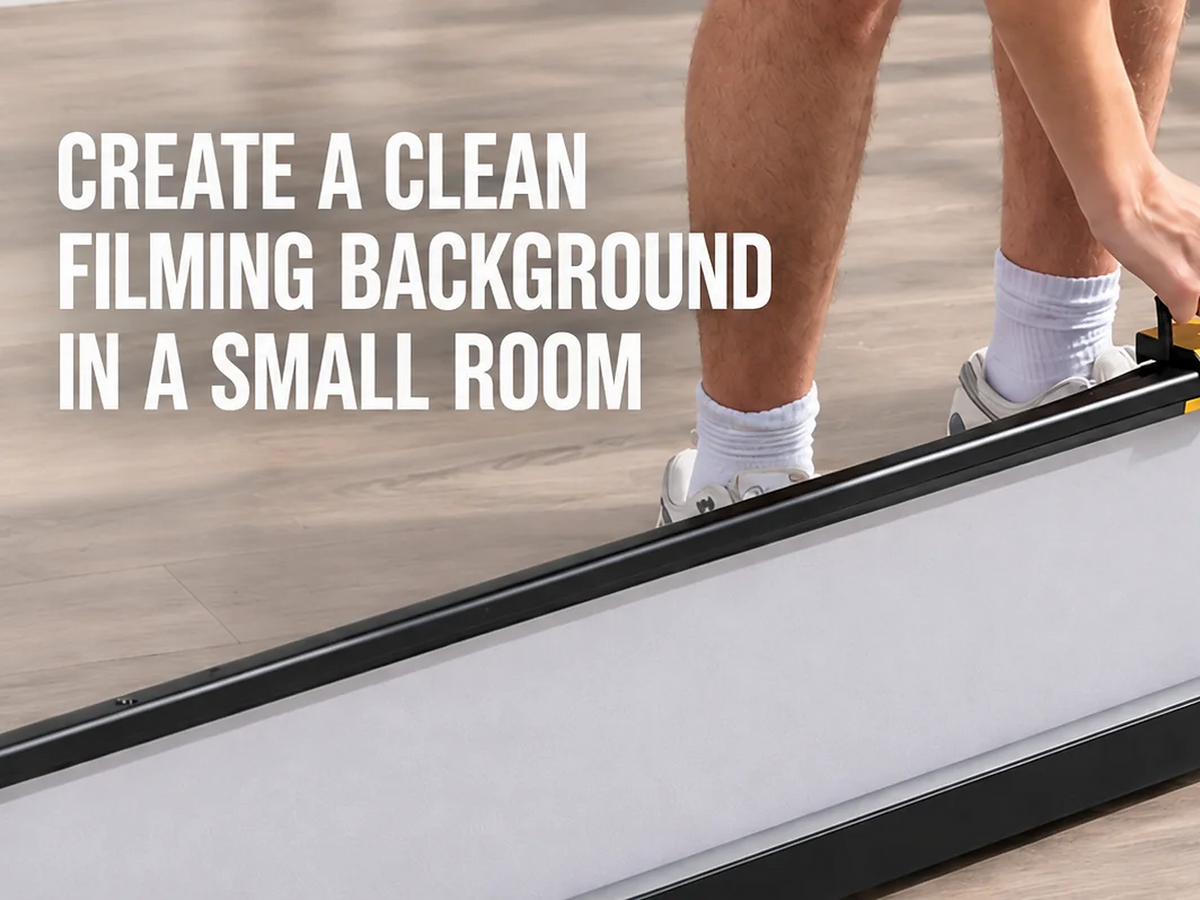
How to Create a Clean Filming Background in a Small Room